

中文

Contact us
tel:15797766463
mail:business@seeshiontech.com
Update time : 2019-11-05 17:39:39
Video filter is used to add color grading effect to user\'s video file, camera preview or standard and dynamic template.
VE also provide a complete solution for video filter. You can use VE solution to create, export your video filter design, then use it in your products by using VE SDK.
The workflow of video filter solution is the same with standard or dynamic template.
Create your design
You can use After Effects to create your video filter, this part should already be familiar to you. If not, you can find some great tutorials online to get you started.
VE also provide some effect plugins to help you create video filter designs in After Effects, you can read more about it in later section.
Export your design
Export a video filter is very simple. We will show you in later section.
Present your design in your app
Preset your template in your app is not that hard with our SDK. But that process involves coding, so we will not discuss it in this article.
You can find detailed guide for iOS at here and Android at here
Creating an video filter mostly involves color grading, adding overlay textures. Those operations should be very easy for an After Effects designer. I won\'t discuss too much about those operations here.
But there are 2 things I need to discuss in detail.
Video filter and layer collapse
VE implements video filter by using pre-composition and layer collapse feature. A filter is basically a pre-composition that contains adjustment layers or AV layers for overlay textures.
When a filter is added to a video or template, VE SDK will create a layer that uses your filter comp as source and put the layer on top of every other layers. To make the adjustment layers and overlay layers in the comp affects the layers outside the filter comp, VE SDK will turn on layer collapse feature on the filter layer.
Let\'s take a look at a example project. You can download it from here.
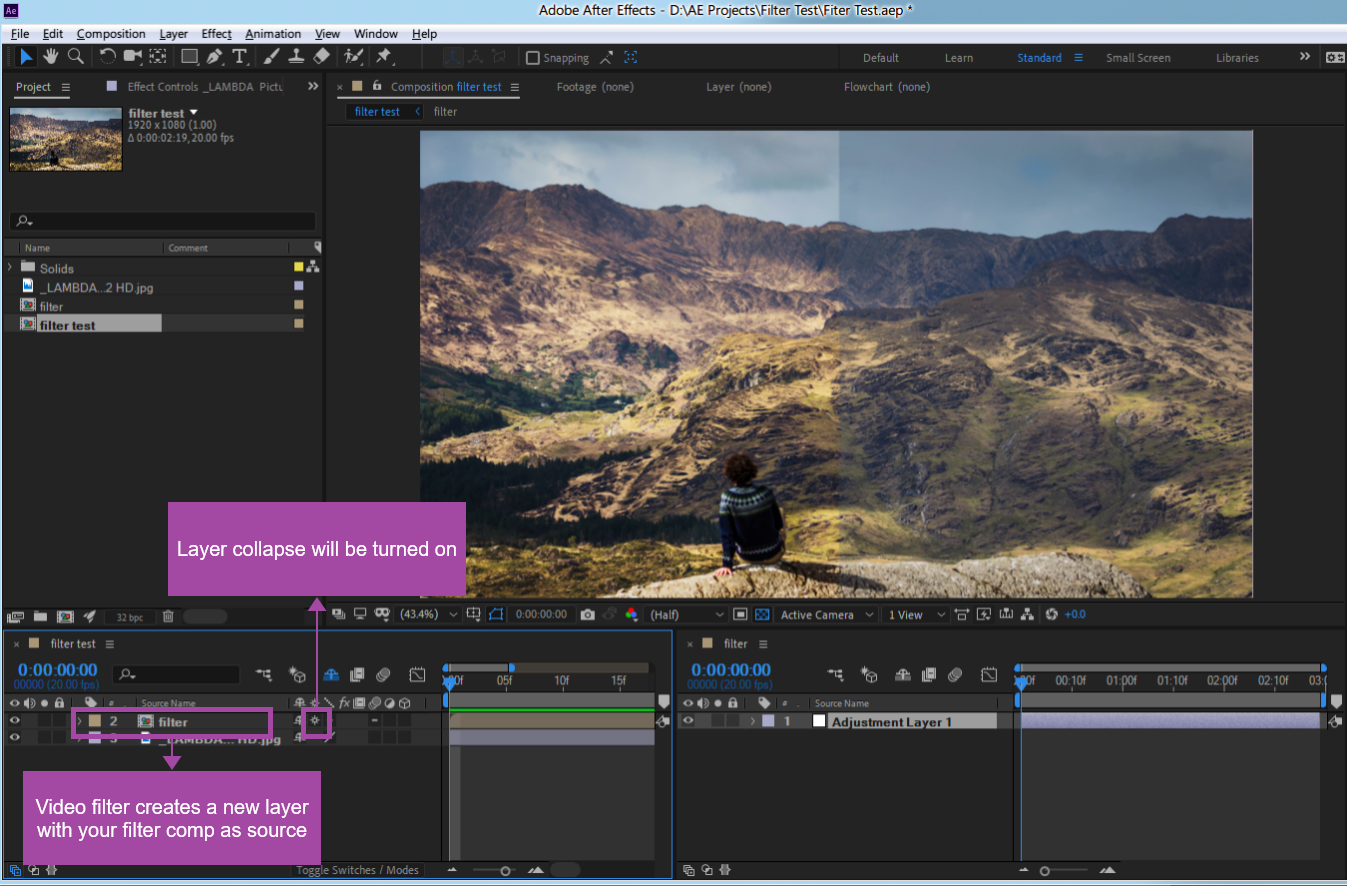 As you can see, when layer collapse is turned on, the adjustment layer inside the filter comp can directly affects the layers outside.
And, when your filter comp is applied on user video or template, the filter layer will be scaled to make it cover the footage.
VE Look Up Image Plugin
VE Look Up Image is an After Effects we provide, you can download it from here.
There are a lot of After Effects color correction plugins out there, it is impossible for VE to support all of them individually. So we uses an look up mechanism to store your color grading result into a look up image, and you can restore the color grading effects by using the VE Look Up Image plugin we provide.
So it\'s recommend you design you video filter using the effects you want and then convert them to using a single VE Look Up Image effect.
We have a separate blog discuss VE Look Up Image in detail, make sure to check it out.
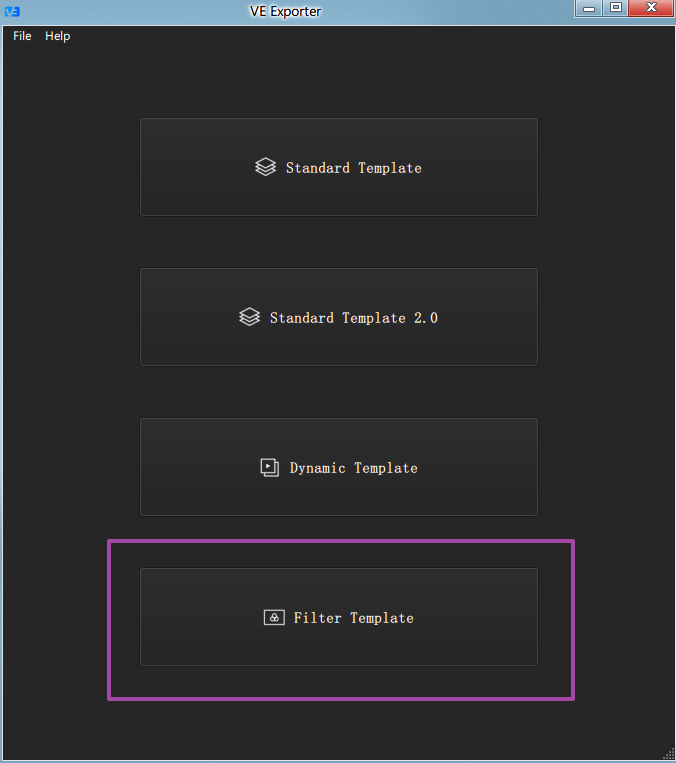
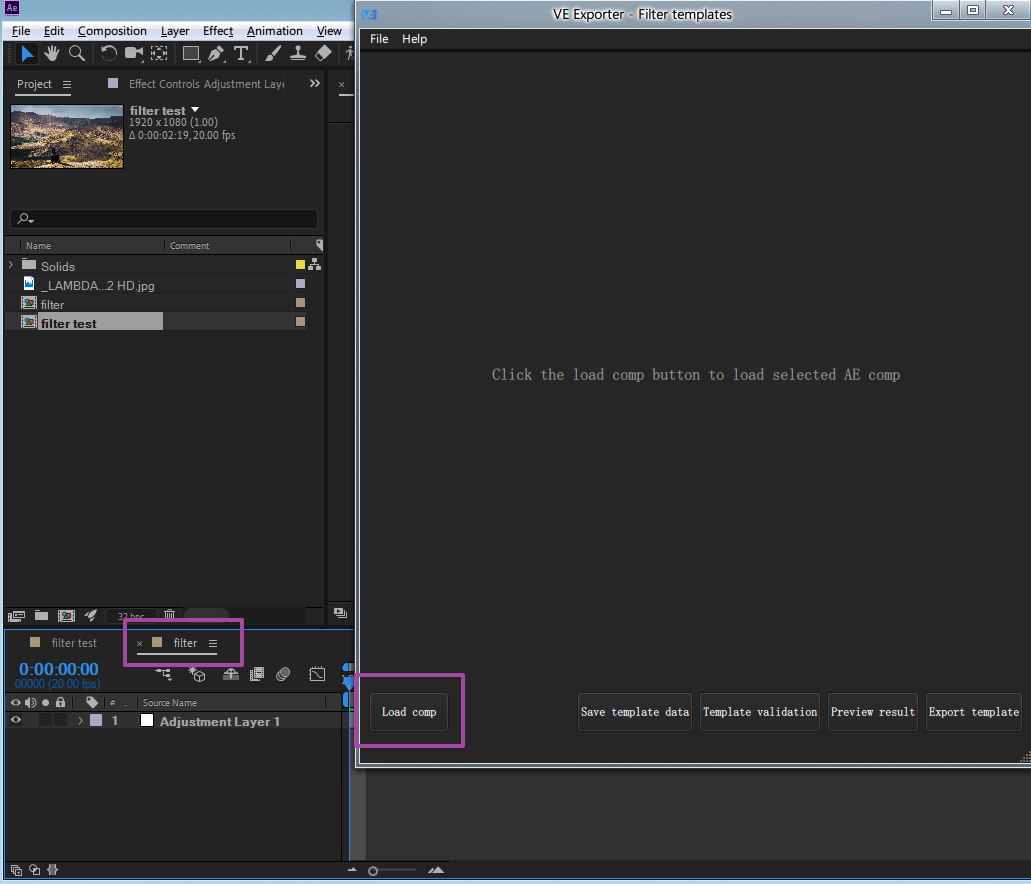
Exporting a video filter project is very easy.
 账号信息
账号信息 我的产品
我的产品 退出登录
退出登录