

中文

Contact us
tel:15797766463
mail:business@seeshiontech.com
Update time : 2019-10-28 17:17:26
VE Exporter\'s interface contains 4 main panels.

Asset panel lists all the asset files used in current template design.
You can select and preview each asset file. You can also mark certain files editable for users, set ui key for each asset file, set editor group for each asset file or add ui data to each asset file etc.
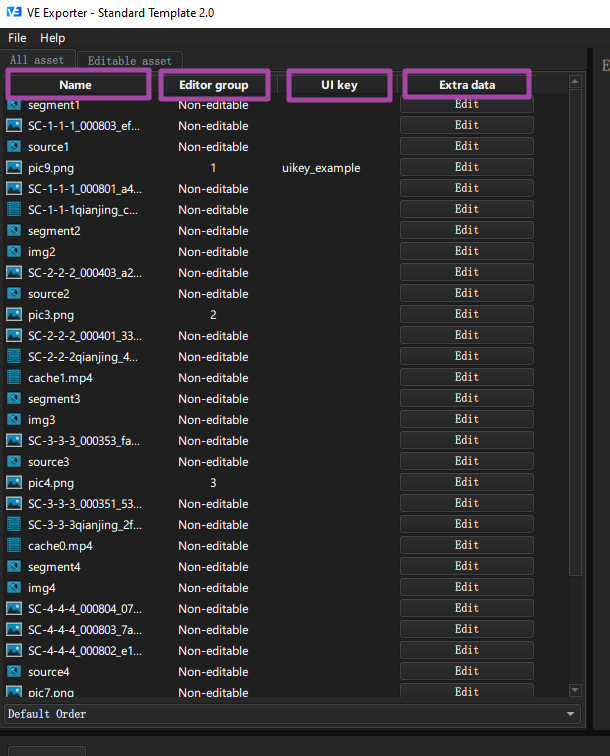
UI key
UI key is nothing but a string. You can set a unique ui key for each asset file.
Developers can use ui key to locate certain asset file and make changes to the asset file.
UI key is not strictly required, you can set ui key is your product requires to make custom changes to certain asset file.
UI Extra data
UI extra data is also a string. You can set extra data for each asset file. UI extra data is used to store custom product logic related data.
For example, if you add a timestamp layer in your template, and want to change its content to current date time automatically when user modify the template, then you can set the ui extra data for the text asset to "current date", then developer can check for that extra data, then replace the content with current date automatically.
UI extra data is not strictly required, you can set ui extra data if your need to use it.
Editable Asset
A template contains a lot of asset files, by default, VE marks all the asset files non-editable to users.
If you users to change certain asset file, you can mark them editable by right click the asset file and set it to editable image or editable text.
Editor group
By default, if you set multiple asset files editable, each asset will has its own editor group, when users edit those file in apps or webpages, users can only edit one asset at a time.
But you can move multiple asset files to the same group, so user can modify those asset files at the same time if necessary.
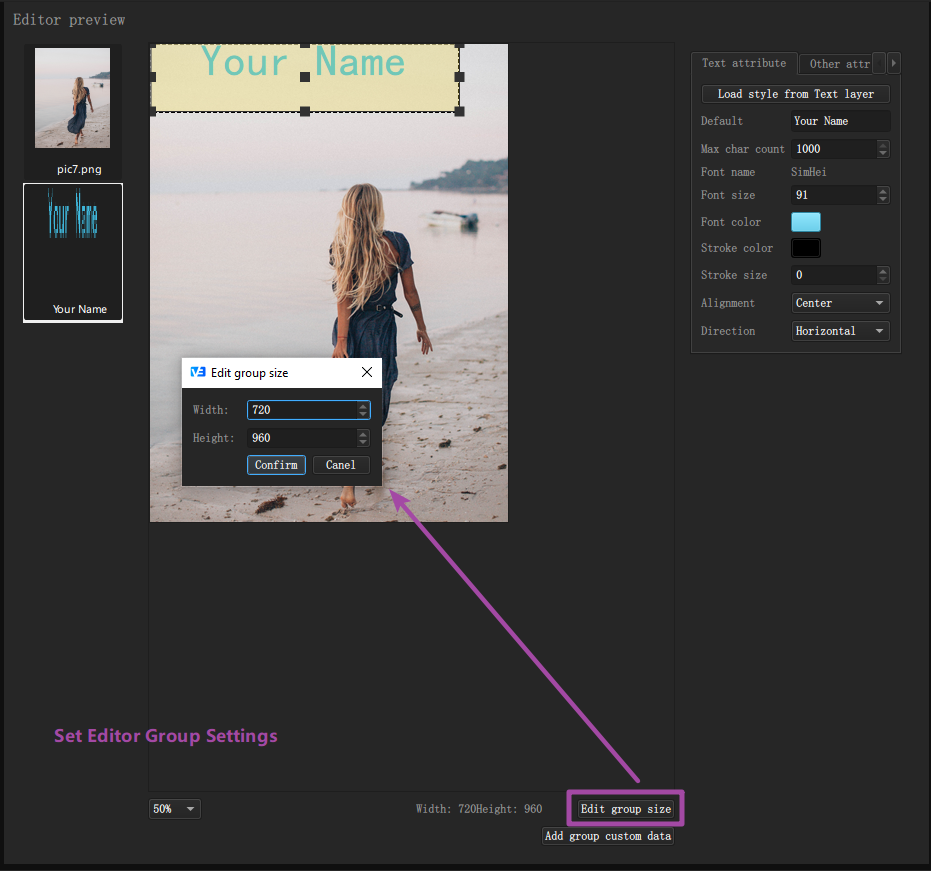
Preview panel can be used to preview each asset file or each editor group. You can also set editor settings for each editable asset file in preview panel.
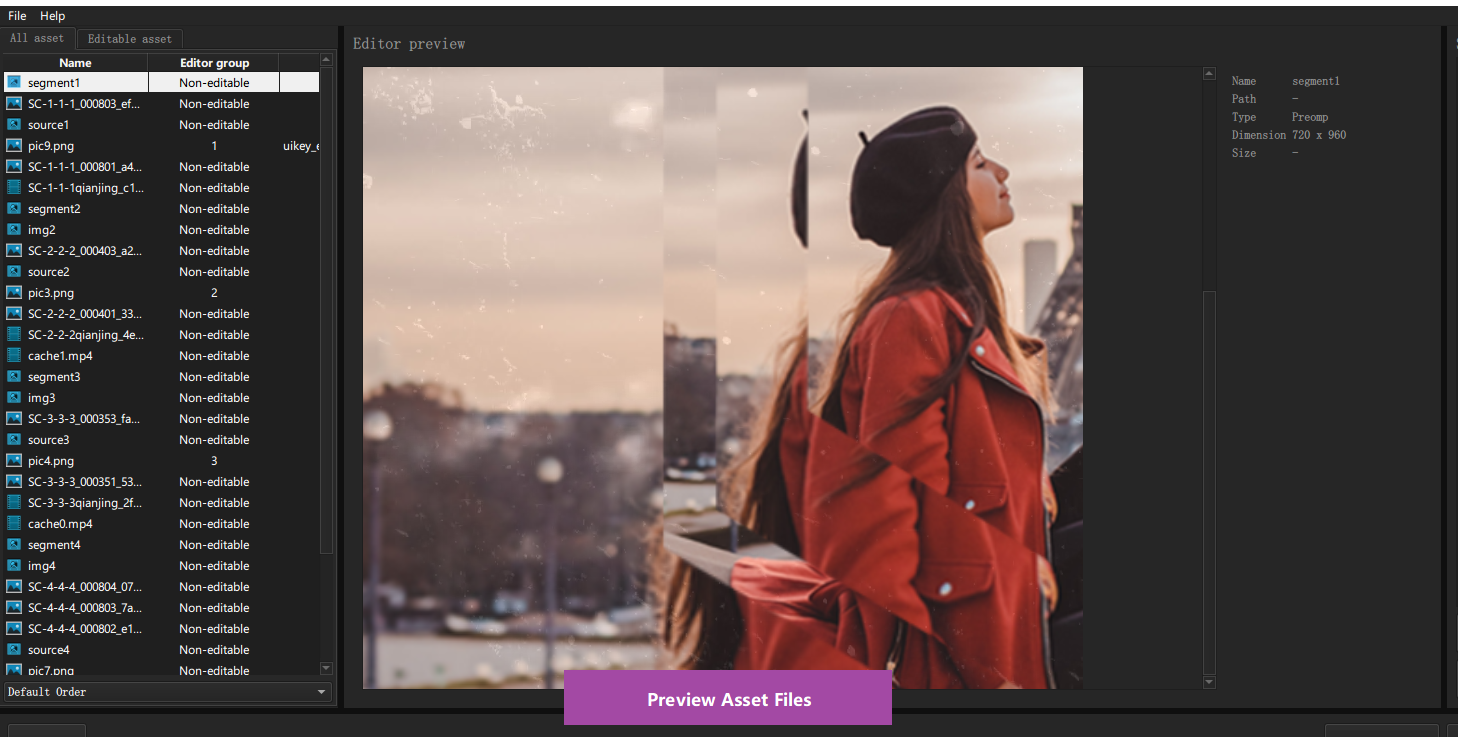


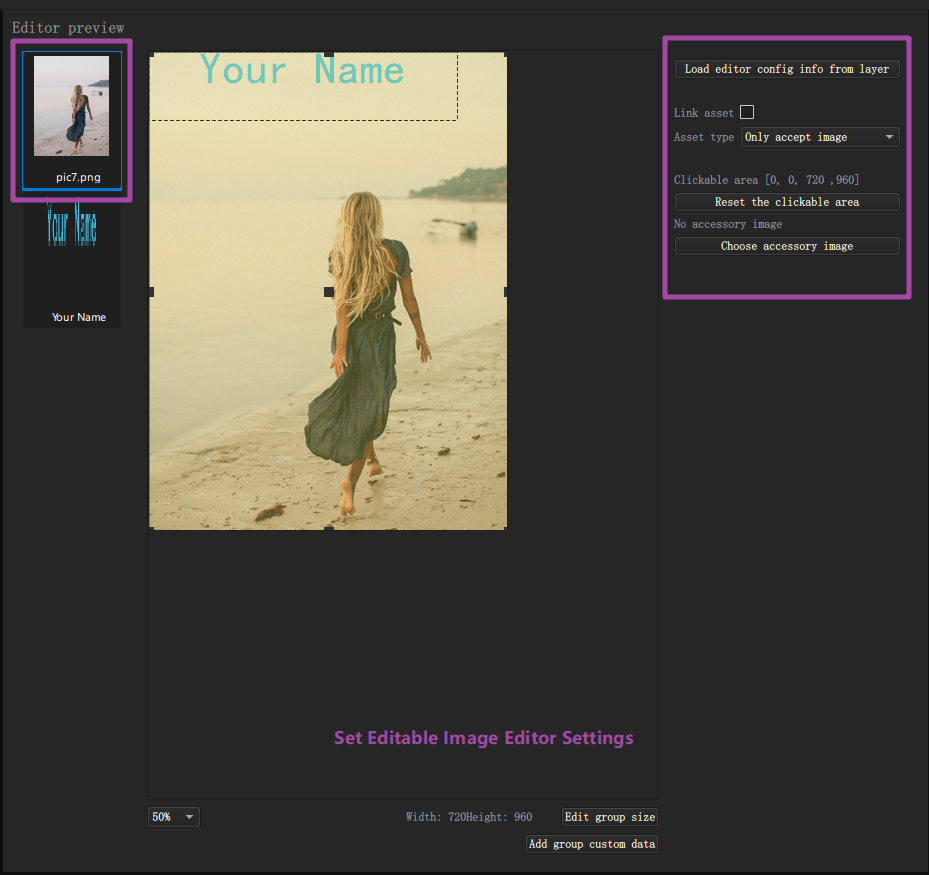
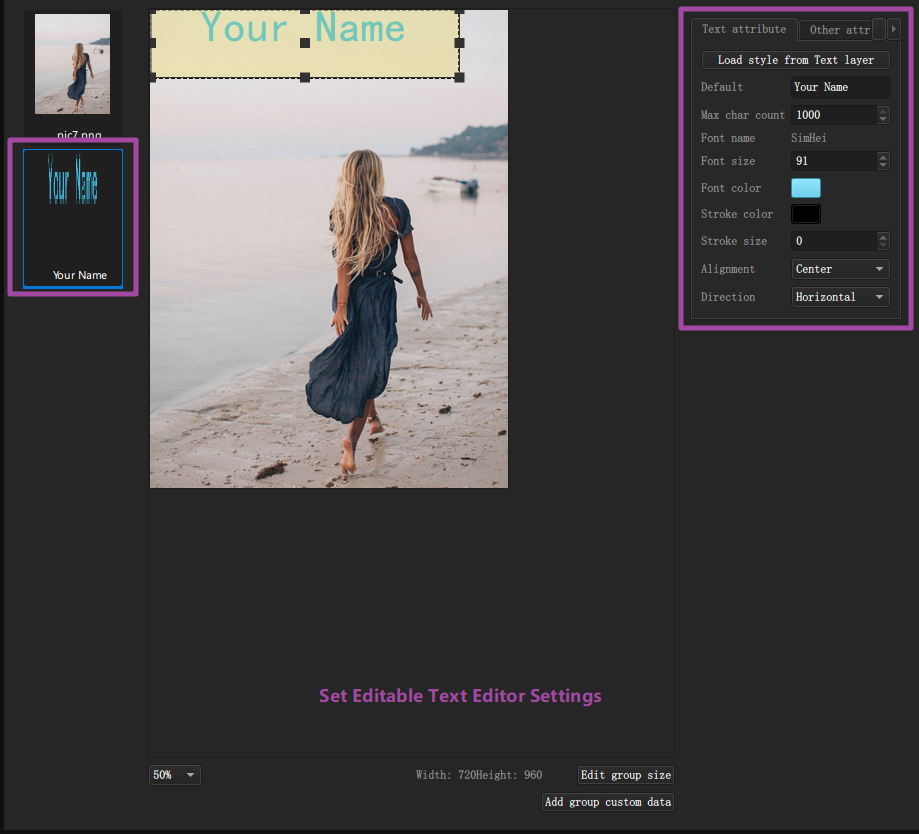
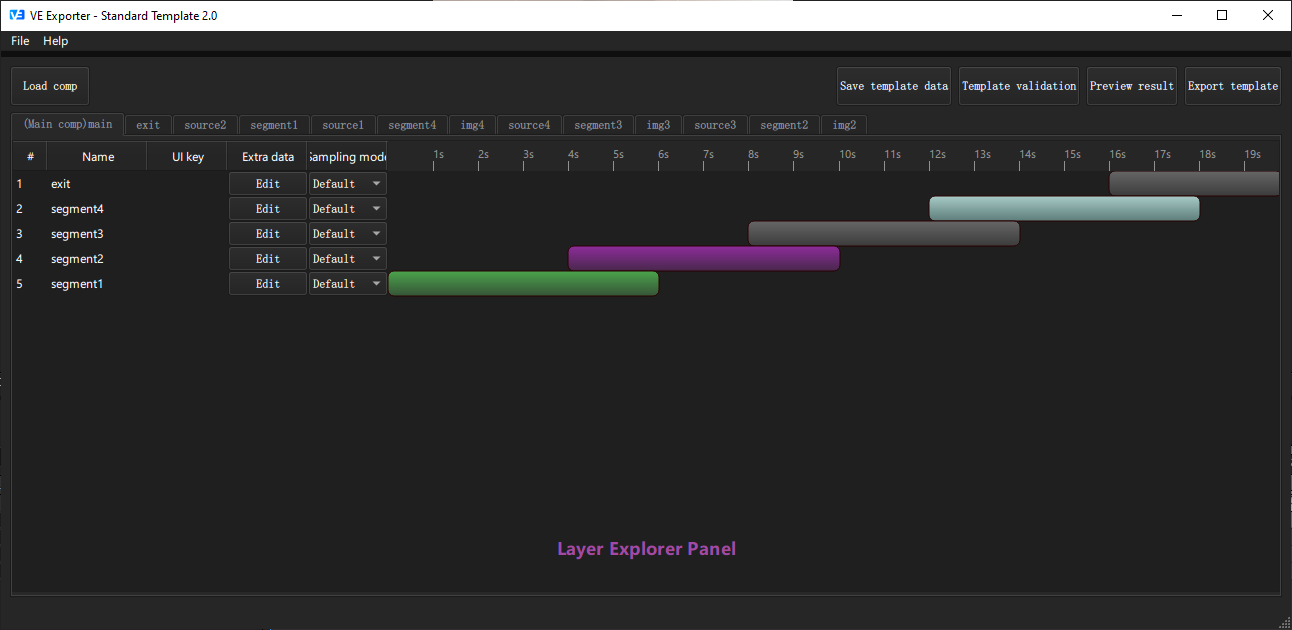
At the top of layer explorer panel, you have 5 buttons.
Load comp
Load the main composition you want to export from After Effects.
Save template data
Save your template exporting progress incase you might need to export current project again later.
Template validation
Validate current project to check wether it uses any feathers unsupported by VE.
Preview result
Preview the template using VE rendering engine to check wether the rendering result is correct.
Export template
Export the template to VE template file.
Layer explorer panel also displays all the compositions and layers in current project.
Compositions and layers are displayed the same way as After Effects, you can navigate to check. VE will skip any unsupported layer, they wont be displayed in the layer explorer.
You can also set the ui key and ui extra data for each layer so that developers can use them to locate certain layer and act according to their extra data.
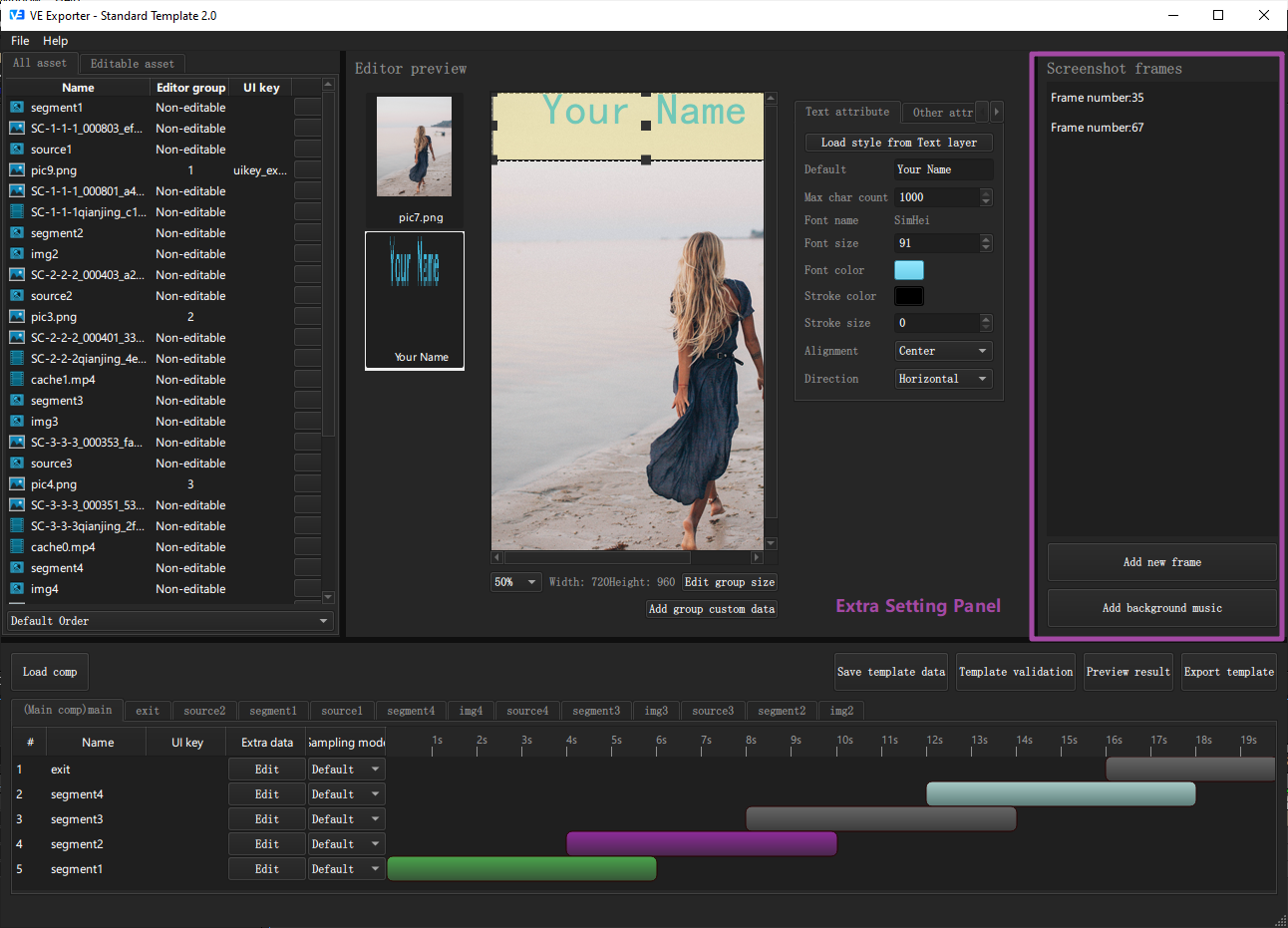
At the right side of VE Exporter, it\'s the extra settings panel. You can add screenshot frame indices for the template and set the background music file for the template.
Add screenshot frame indices
Some product might need to take screen shots of the result template video. Designers can add screenshot frame index data to VE template.
Developers can use those data to take screenshots of the video.
Add background music file
For performance reason, VE only allow designers to add one default audio file to VE template(users can change it or add more through SDK).
So if you have multiple audio tracks in your project, you need to pre-render them as one audio file and add it to template by click the "Add background music" button.
 账号信息
账号信息 我的产品
我的产品 退出登录
退出登录