

中文

Contact us
tel:15797766463
mail:business@seeshiontech.com
Update time : 2019-11-04 11:30:42
Dynamic template is different from standard template. Dynamic template is modularized. When C-end users create video using a dynamic template, they don\'t have to worry about how many images or videos they can use in the template.
Dynamic template can adjust its content and duration according to how many asset files are used to generate a video.
To compare dynamic template with standard template,you can check out this page.
The workflow of creating a dynamic template and delivering it to C-end users contains some important steps.
Create your design
You can use After Effects to create your video design, this part should already be familiar to you. If not, you can find some great tutorials online to get you started.
Since dynamic template is modularized, there are some important rules you need to follow when creating an After Effects project.
Export your design
Export a dynamic template is even simpler than exporting a standard template. Because creating video by using an dynamic template do not require fixed amount of asset files, all users have to do is select a template and then select all the asset files they want to use in the template. They don\'t have to modify the template using the template editor.
Present your design in your app
Preset your template in your app is not that hard with our SDK. But that process involves coding, so we will not discuss it in this article.
You can find detailed guide for iOS at here and Android at here
As mentioned above, creating your video design mainly requires the ability to use After Effects.
You can find a lot of great tutorials form Adobe website or YouTube channels.
But what you need to keep in mind when creating your After Effects project is that VE currently supports limited After Effects features and effects. Please refer to this article for detailed list.
Just an effect is not supported by VE does not mean you can\'t use it in your project at all. Let\'s say if you are using some particle effects created by Particular plugin, Particular is not supported by VE, but as long as you don\'t want C-end users to change those effects, you can just pre-render those effects as video footages.
In this way, you can use a lot of unsupported features in your project, and pre-render them before exporting your project as VE template.
When preparing your project for exportation, you might want to take a look at VE Cleaner, it contains a lot of handy tools to help you automatically clean up your project.
Dynamic template is formed by modules. When designing a dynamic in After Effects, it\'s necessary to know what types of module do you need to visualize your creative idea.
So, in this section, we are going to take a detail look at each module type and how they work together to make dynamic template dynamic and smart.
When creating a dynamic template, we need to split the timeline into different parts, we call each part a module.
So, as you might already guessed it, a module is essentially a pre-composition.
To make set a pre-composition to a certain type, you just need to give the composition the correct name. There are 7 types of modules and a main composition you can use in a dynamic template.
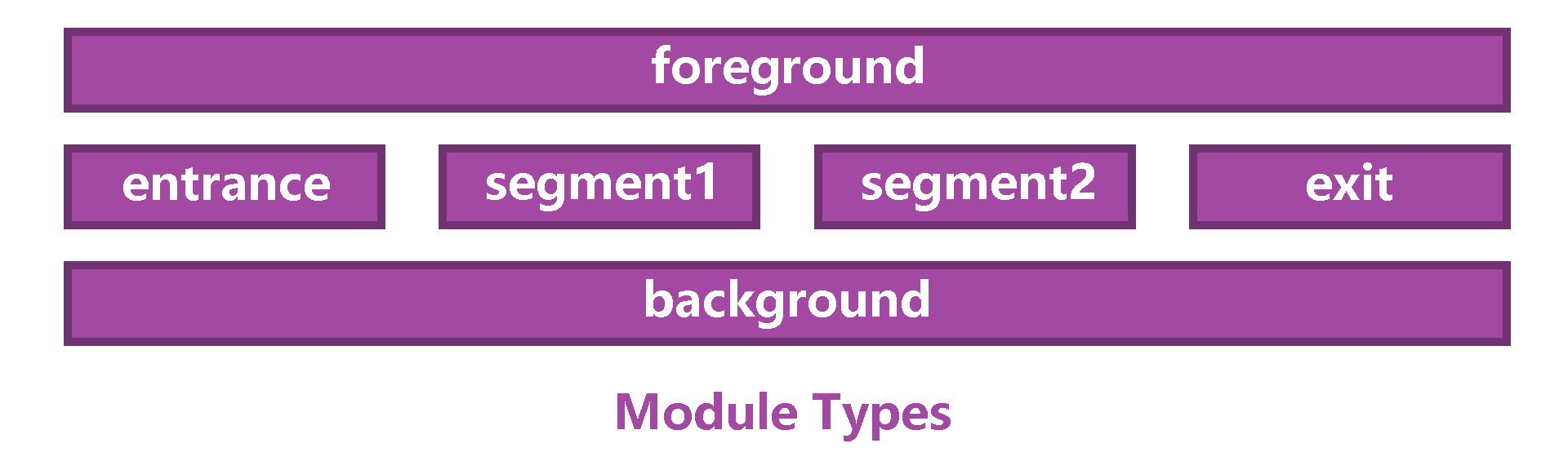
Source Module
Composition Name:
Must be named "source"+index style. For example the first source should be named "source1", the second should be "source2", etc.
Limit:
You must have at least one animation segment in your template
Functionality:
Source composition is used to contain use asset. A source composition can only contains an AV layer, and that layer will be replace with user asset in the final video.
When user asset is placed in source composition, there are several options designer can choose to decide how the asset layer should fit into the size of the source composition.
You can find more detail about these options in later section.
Entrance Module
Composition Name:
Must be named "entrance"
Limit:
Not limited, you can choose whether you wan to use an entrance module or not.
Functionality:
Entrance composition is placed at the beginning of video and it will only be play once in the final video.
Exit Module
Composition Name:
Must be named "exit"
Limit:
Not limited, you can choose whether you wan to use an entrance module or not.
Functionality:
Exit composition is placed at the end of video and it will only be play once in the final video.
Foreground Module
Composition Name:
Must be named "foreground"
Limit:
Not limited, you can choose whether you wan to use an entrance module or not.
Functionality:
Foreground composition is placed on top of all other modules in the final video, and it will loops in the final video
Background Module
Composition Name:
Must be named "background"
Limit:
Not limited, you can choose weather you wan to use an entrance module or not.
Functionality:
Background composition is placed below all other modules in the final video, and it will loops in the final video
Animation Segment
Composition Name:
Must be named "segment"+index style. For example the first segment should be named "segment1", the second should be "segment2", etc.
Limit:
You must have at least one animation segment in your template
Functionality:
Animation segment is very important. It is used to animation your source compositions, you can create many animation segments and each one of them create use one or more source compositions to create animation.
Main Composition
Main composition is used to arrange all the main modules. You can use it to define the background color, framerate and size of the final video.
Here we can see a screenshot of the timeline of an example dynamic template. You can download the project from here.
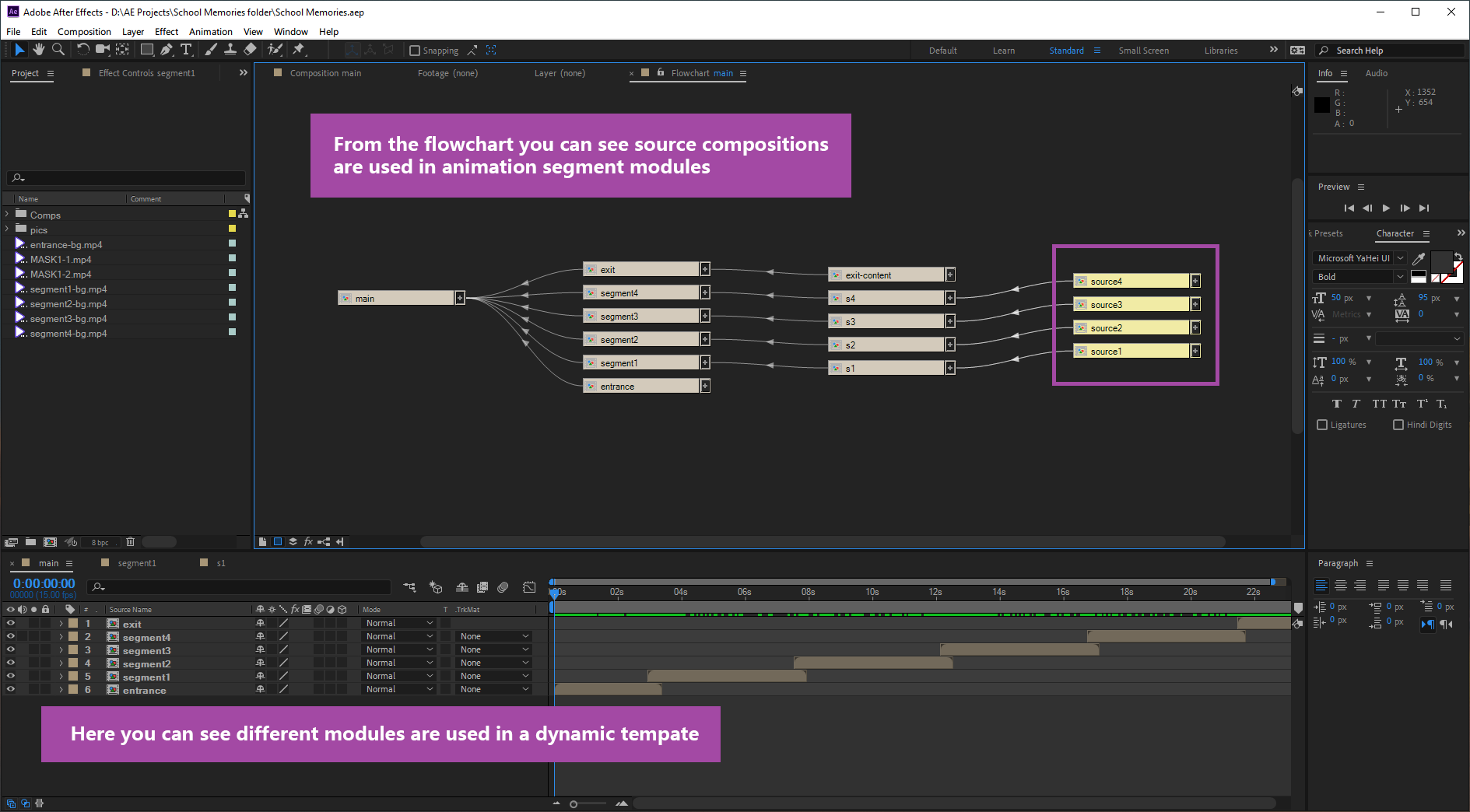
1. What is source composition?
We introduced source composition in section above. It is used contain user asset.
Dynamic template is designed to simplify the process of modifying and template for C-end users. So the principle is, dynamic template does not limit the amount of asset files user can use in a template, it also limit the width and height of each asset file.
But for designer, they have to know the size of each asset file so they can make correct animation design.
So when designers animate user assets, they don\'t have to dealing with asset file directly, they can create source compositions with fixed sizes to animate with.
When users put their asset files into source compositions, their asset files will be adjusted to fit into the sizes of source compositions.
2. How does source composition adjusts user assets?
They most important usage of source compositions is adjusting the size of asset files.
When exporting an dynamic template, designer can select how they want adjust the asset files. We call it - filling method.
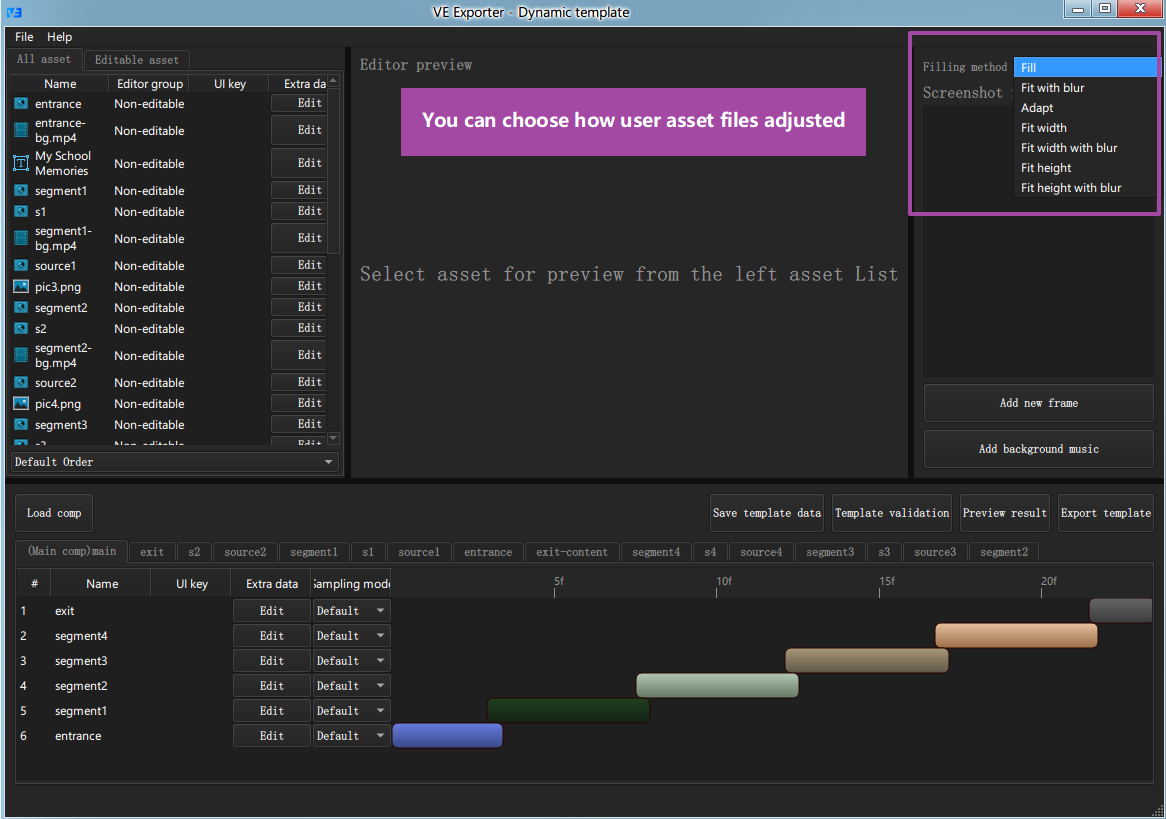
There are 7 options can be choose from.
Let me explain how each option adjusts the user asset file.
Let\'s say we have an source composition whose size if 200*200.
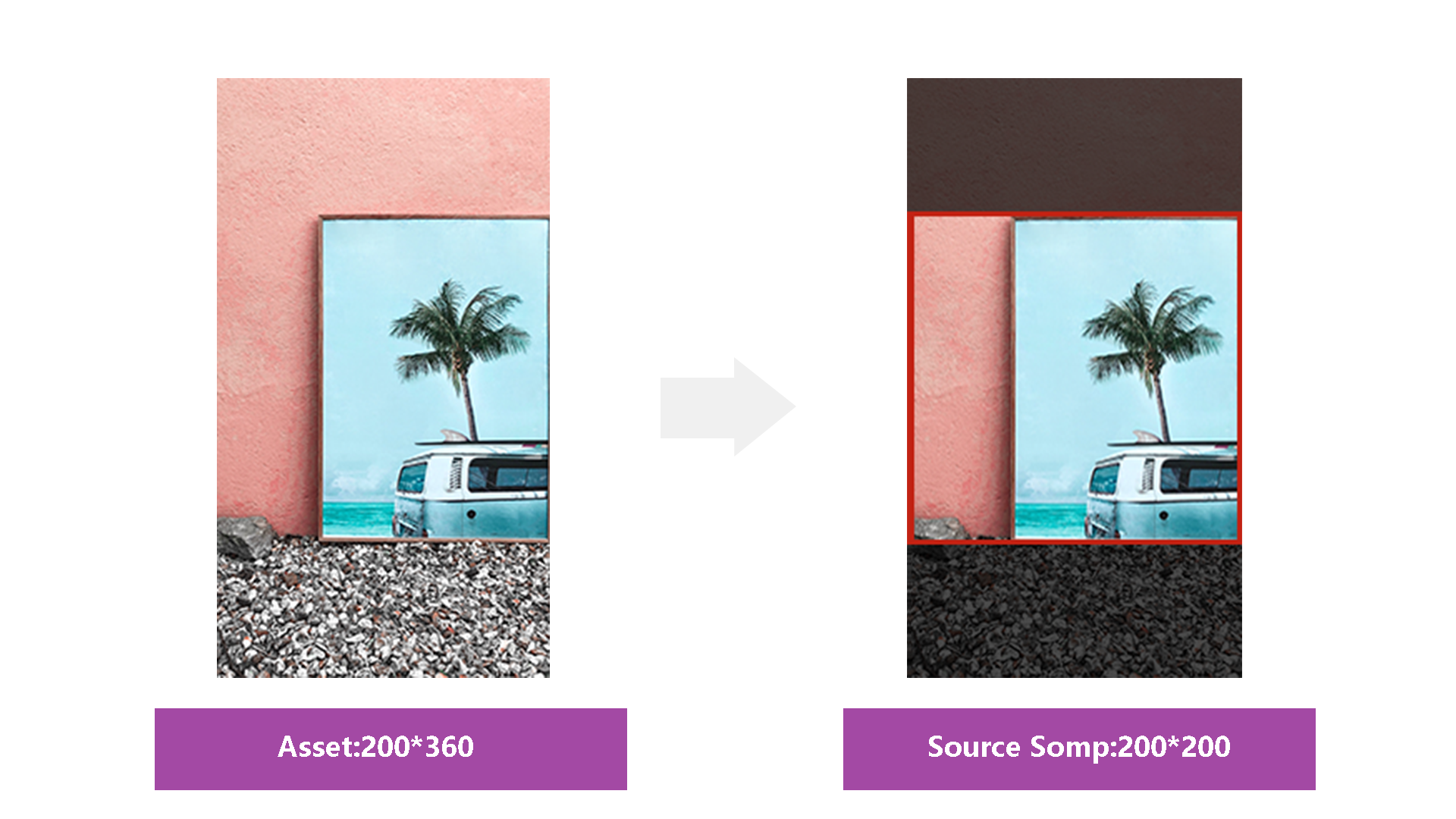
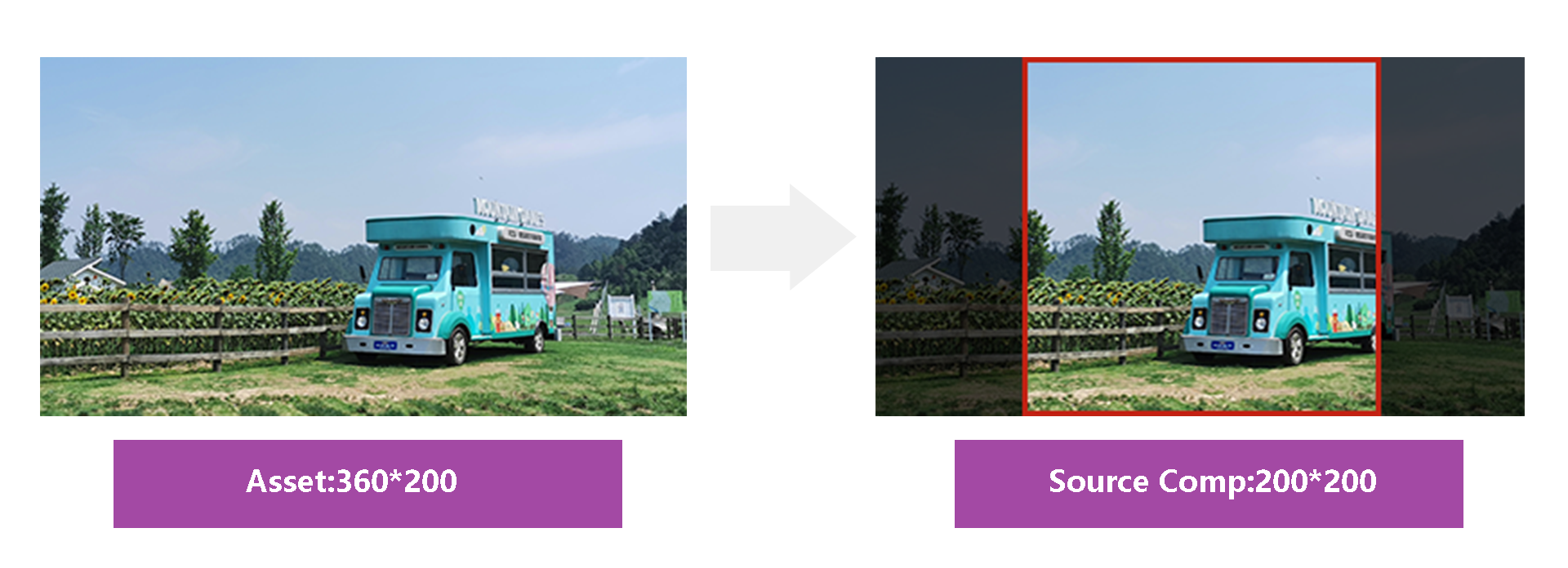
Fill
Fill will resize user asset uniformly to make sure the asset can cover the size of the source comp.
Here is an image to show you how an 360 200 asset is adjusted to fit into the 200 200 source comp. You can see the asset is resize and the left and right side is cropped.
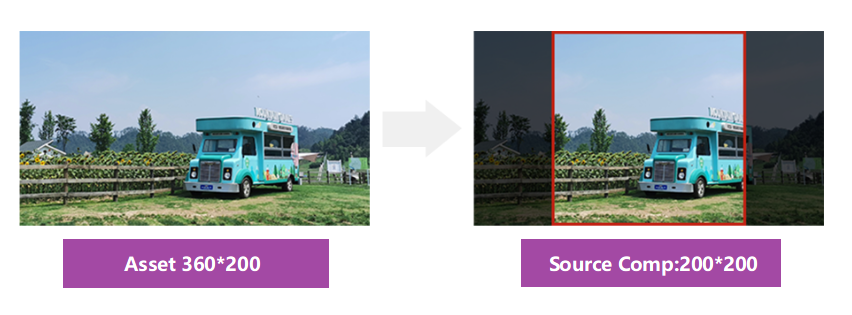 Or, here is an image to show you how an 200 360 asset is adjusted to fit into the 200 200 source comp. You can see the asset is resize and the top and bottom side is cropped.
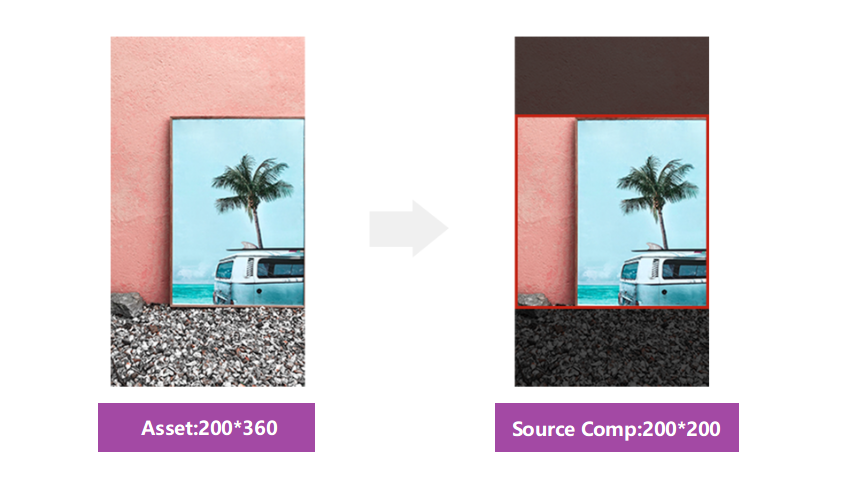
Fit with blur
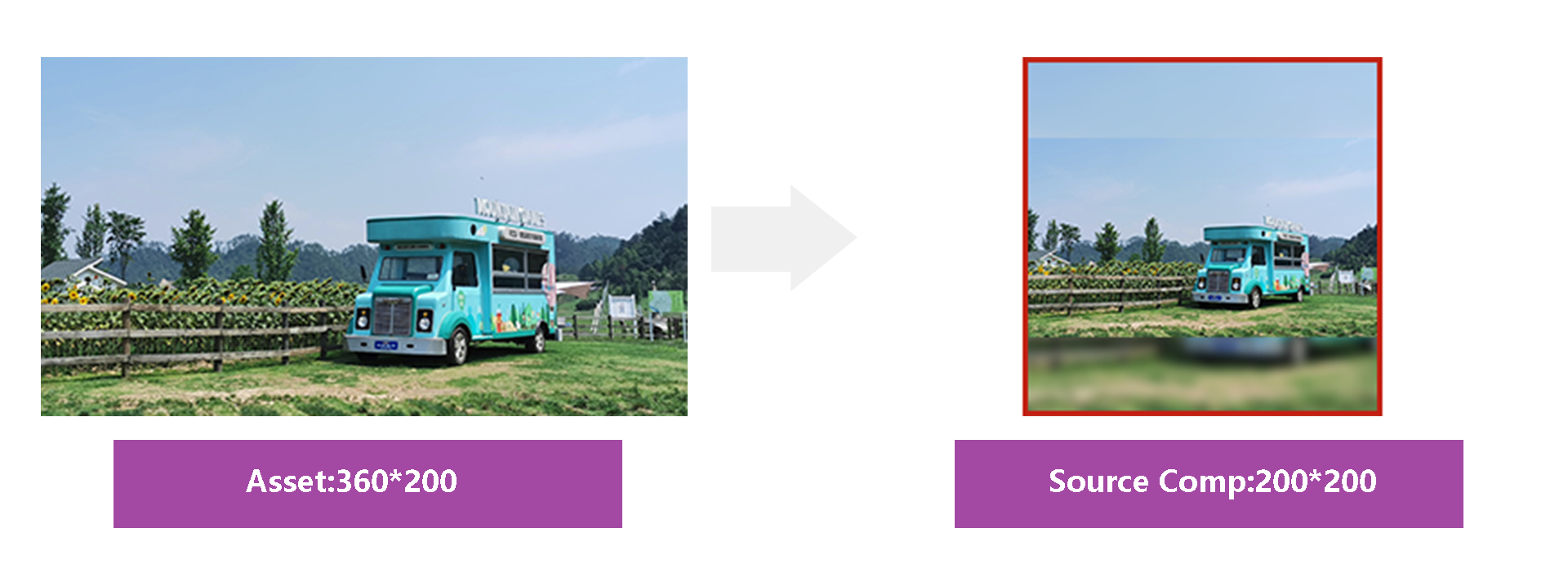
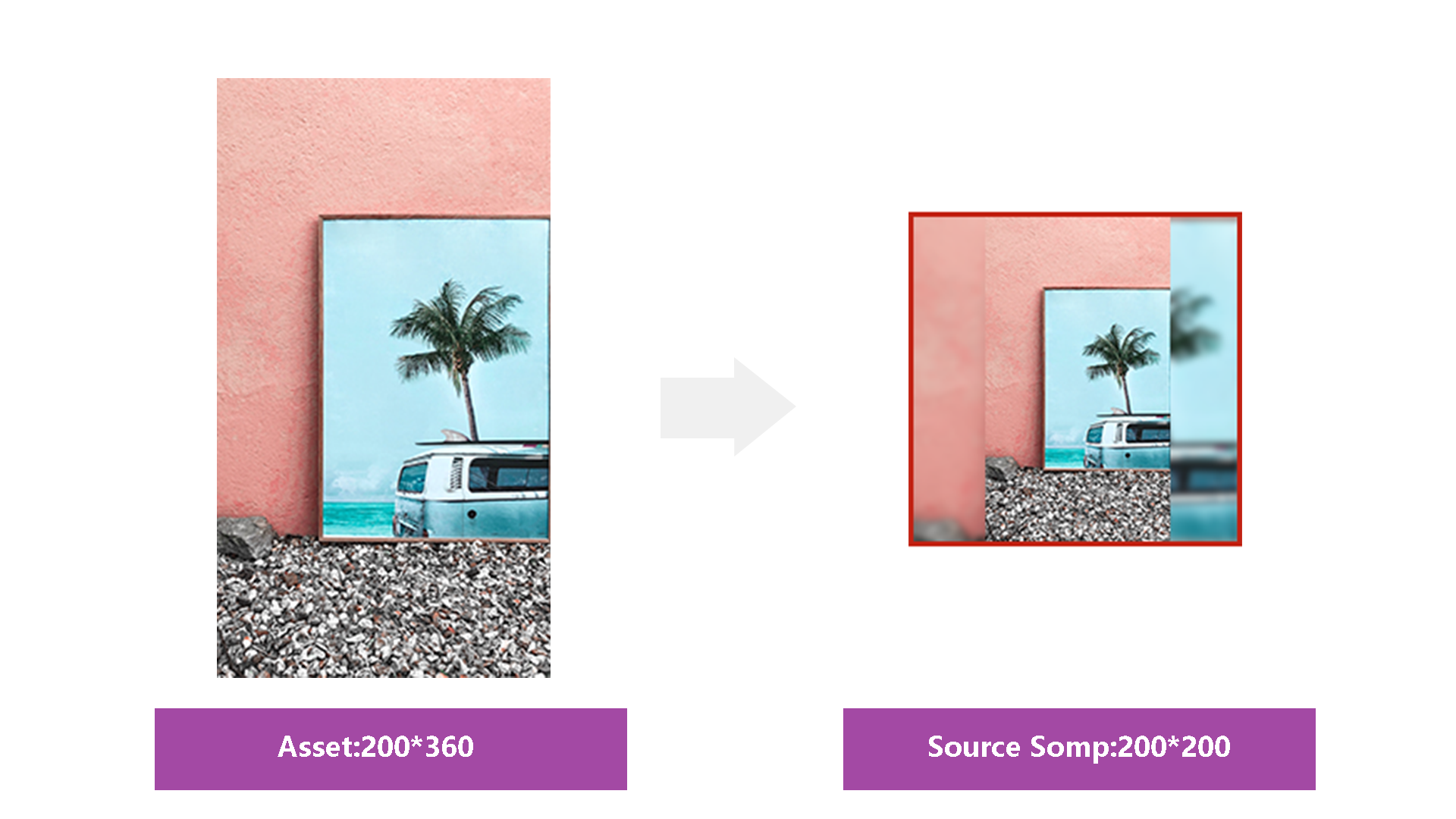
Fit with blur will resize user asset file uniformly, and make sure nothing get cropped off. And it will add a blurred version of user asset at background to make sure no all the space of the source comp is covered.
Here is an image to show you how an 360 200 asset is adjusted to fit into the 200 200 source comp.
Here is an image to show you how an 200 360 asset is adjusted to fit into the 200 200 source comp.
Adapt
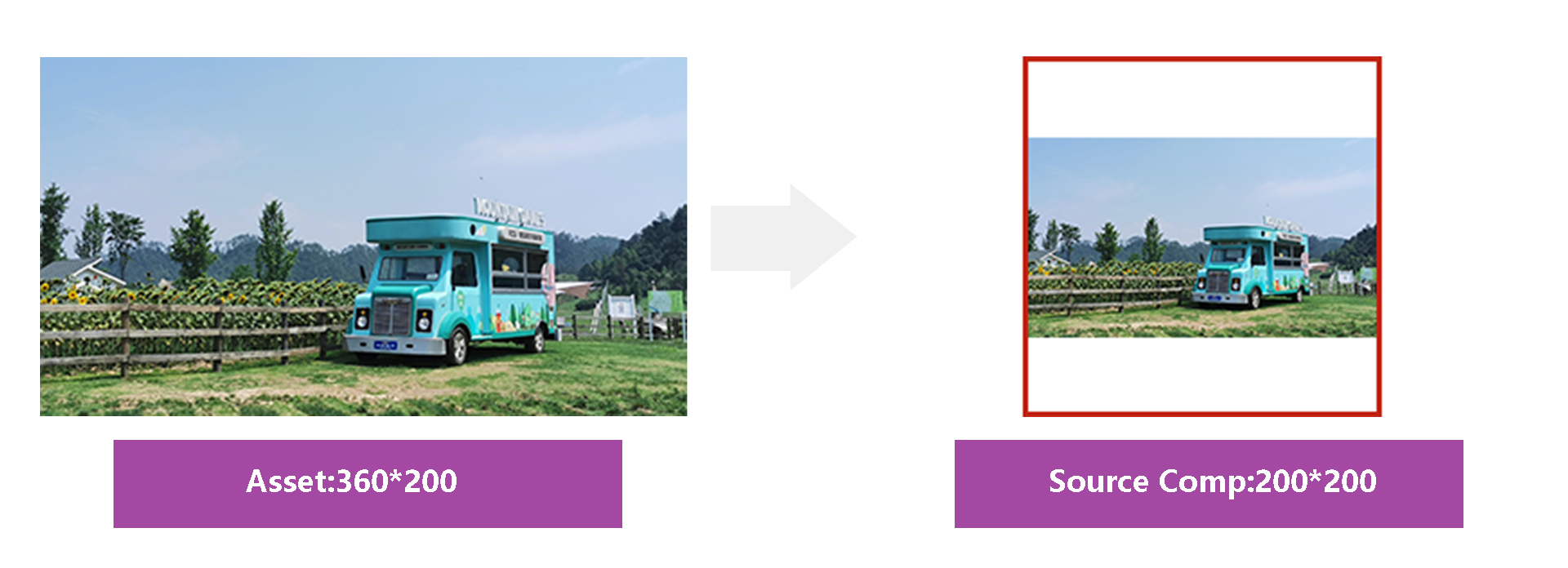
Adapt will resize user asset file uniformly, and make sure nothing get cropped off. If the source comp is not fully covered by the asset, uncovered area will be left transparent.
Here is an image to show you how an 360 200 asset is adjusted to fit into the 200 200 source comp.
Here is an image to show you how an 200 360 asset is adjusted to fit into the 200 200 source comp.
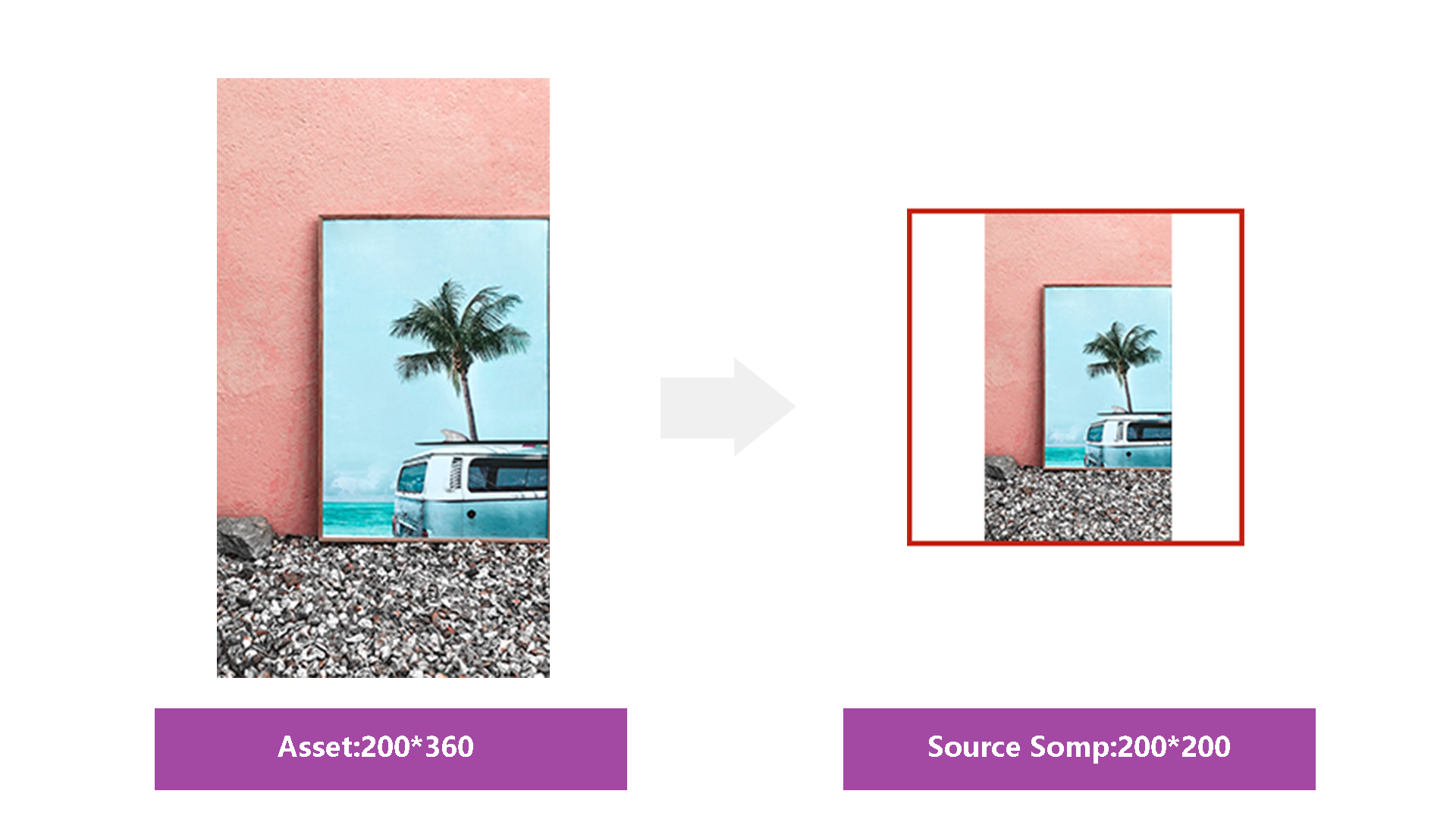
Fit width
Adapt will resize user asset file uniformly, and make sure the width of the asset can fit into source comp. If the source comp is not fully covered by the asset, uncovered area will be left transparent.
Here is an image to show you how an 360 200 asset is adjusted to fit into the 200 200 source comp.
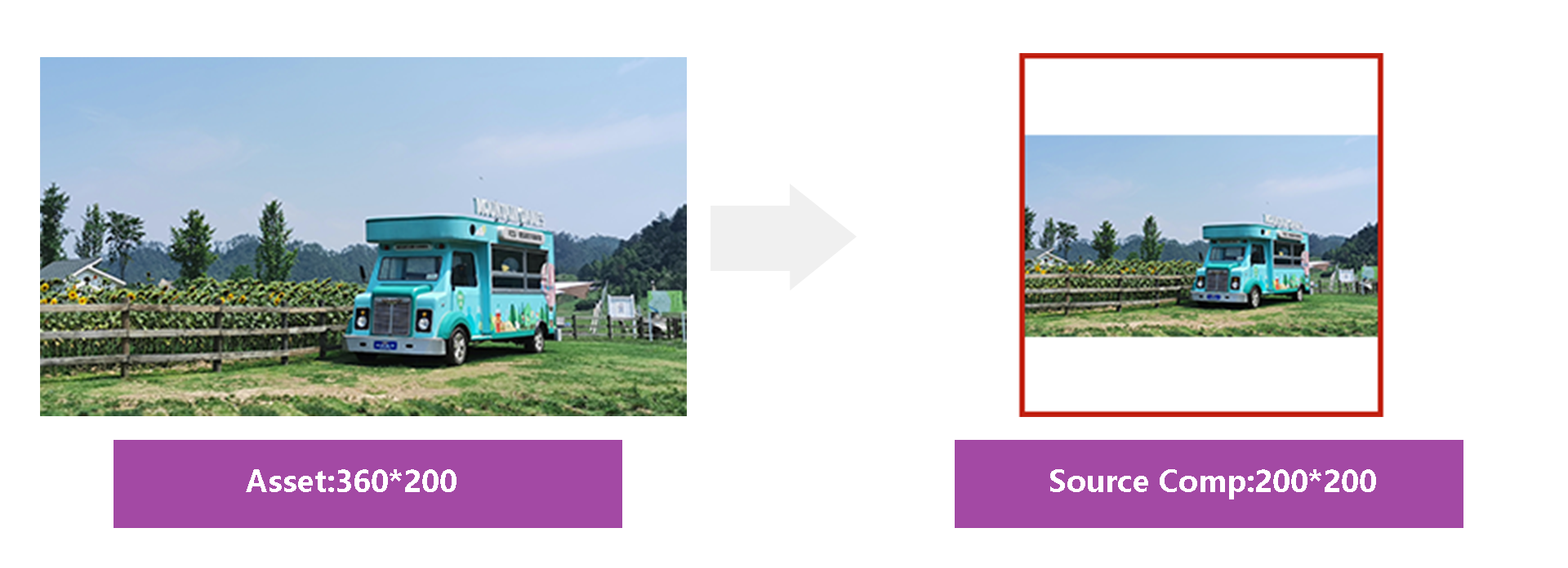
Here is an image to show you how an 200 360 asset is adjusted to fit into the 200 200 source comp.
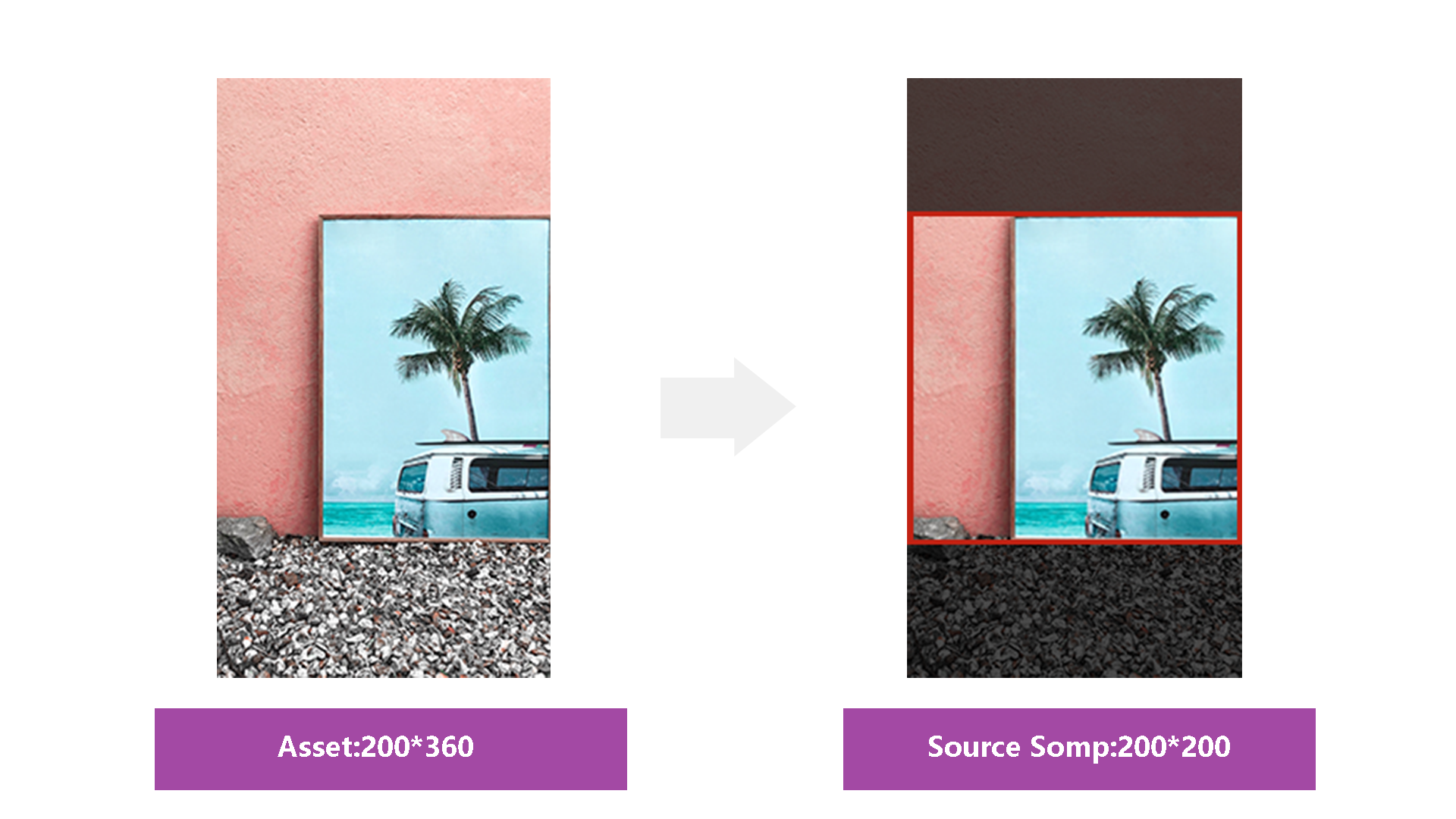
Fit width with blur
Adapt will resize user asset file uniformly, and make sure the width of the asset can fit into source comp. And it will add a blurred version of user asset at background to make sure no all the space of the source comp is covered.
Here is an image to show you how an 360 200 asset is adjusted to fit into the 200 200 source comp.
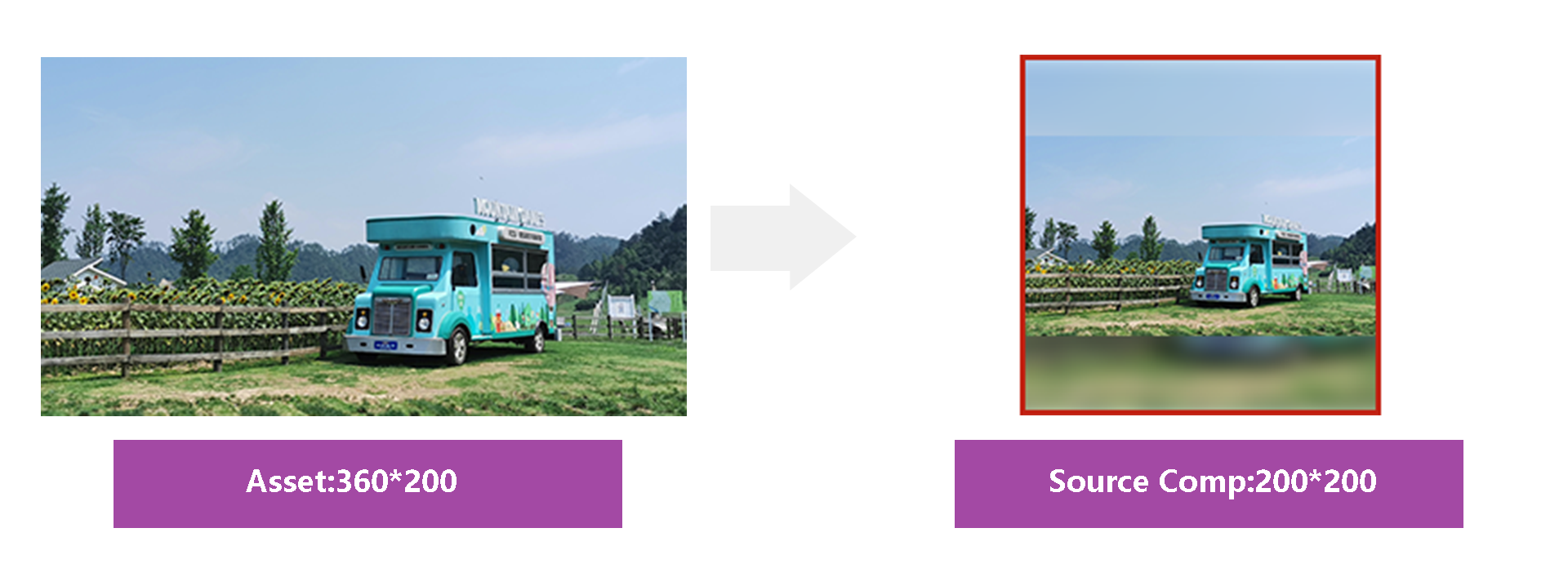
Here is an image to show you how an 200 360 asset is adjusted to fit into the 200 200 source comp.
Fit height
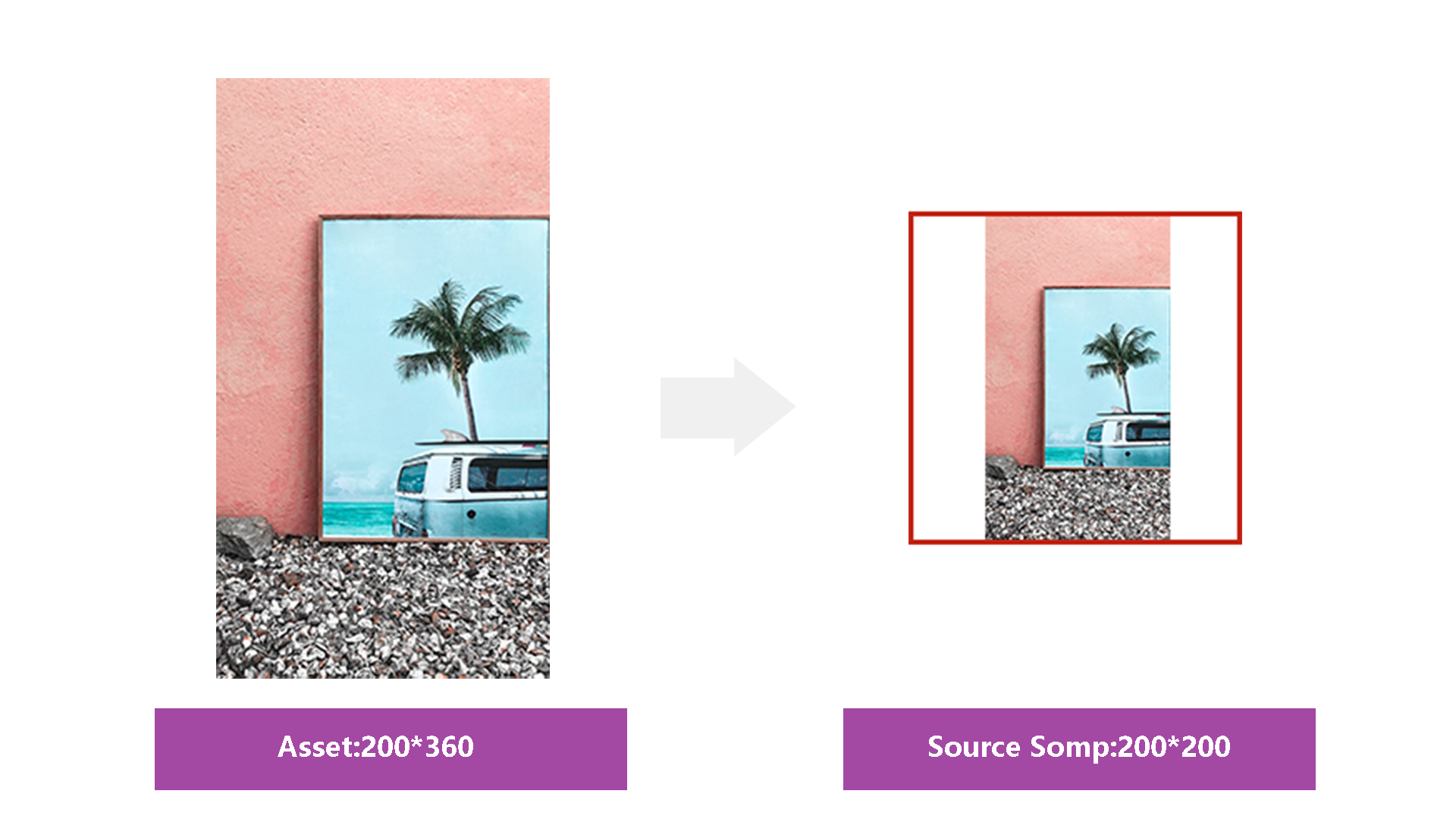
Adapt will resize user asset file uniformly, and make sure the height of the asset can fit into source comp. If the source comp is not fully covered by the asset, uncovered area will be left transparent.
Here is an image to show you how an 360 200 asset is adjusted to fit into the 200 200 source comp.
Here is an image to show you how an 200 360 asset is adjusted to fit into the 200 200 source comp.
Fit height with blur
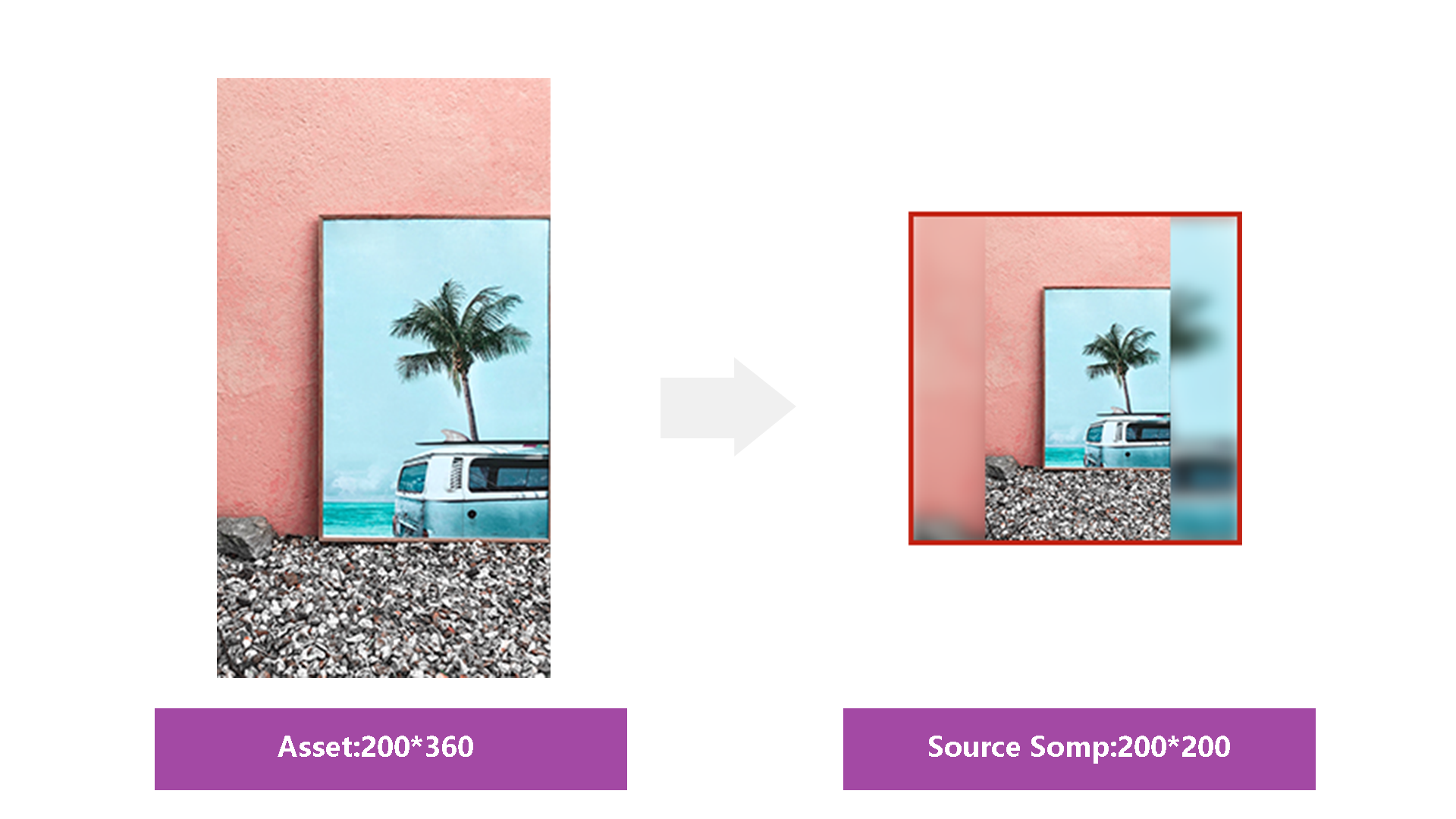
Adapt will resize user asset file uniformly, and make sure the height of the asset can fit into source comp. And it will add a blurred version of user asset at background to make sure no all the space of the source comp is covered.
Here is an image to show you how an 360 200 asset is adjusted to fit into the 200 200 source comp.
Here is an image to show you how an 200 360 asset is adjusted to fit into the 200 200 source comp.
Since we do have to limit the amount of asset files users use to create an video using an dynamic template, VE SDK will adjust content and duration of the result video according to the amount of asset files. In this section, we are going to discuss how SDK adjusts the content and length of the result video.
When SDK receives the asset file array from user, first it checks whether there are source comps in the entrance segment, if there are, SDK will select asset files from the beginning of asset file array and put them one by one into the source comps in entrance segment.
Then SDK checks whether there are source comps in the exit segment, if there are, SDK will select asset files from the end of asset file array and put them one by one into the source comps in exit segment.
After putting asset files into entrance and exit segment, if there are asset files left in the asset file array, SDK will put them into animation segments. SDK will checks animation segment one by one to see how many source comps do they have, and filling them up.
Let\'s say we have 10 asset files and 3 animation segments. The first animation segment contains 1 source comp, the second segment contains 2 source comp and the third animation segment contains 3 source comps.
First, SDK will put one asset file into the first animation segment, and 2 asset files into the second animation segment, and 3 asset asset files into the third animation segment.
Now we have 4 asset files left. SDK will check the first animation segment again, since it contains 1 source comp, so SDK will duplicate it and put move the duplication to the end of the third animation segment and fill it with 1 asset file, then SDK will duplicate the second animation segment and move the duplication and move it to the first duplication and fill it with 2 asset files.
Now we have 1 asset file let, and the third animation segment uses 3 source comp, so SDK will skip the third animation segment and check from the beginning again. So SDK will duplicate the first animation segment again.
Now the adjusted timeline looks like this.

4. Important Remark
As you can see from above, SDK duplicates animation segments and arranges them on the timeline and fills them with user asset files.
But if SDK can not find an animation segment that contains appropriate amount of source comps, SDK will discard the asset files. Those asset files will not be shown in the final video. For example, if we have 1 asset file, but all the animation segments all contain more than 1 source comp, then the 1 asset file will be discarded.
So it\'s good practice to always create an animation segment that contains only one source comp in your dynamic template.
Since animations are split into segments, you might want to know how to create transitions between animation segments.
Well, you can just overlap your segments in your main composition, SDK will respect the overlapped
time ranges in the final video.
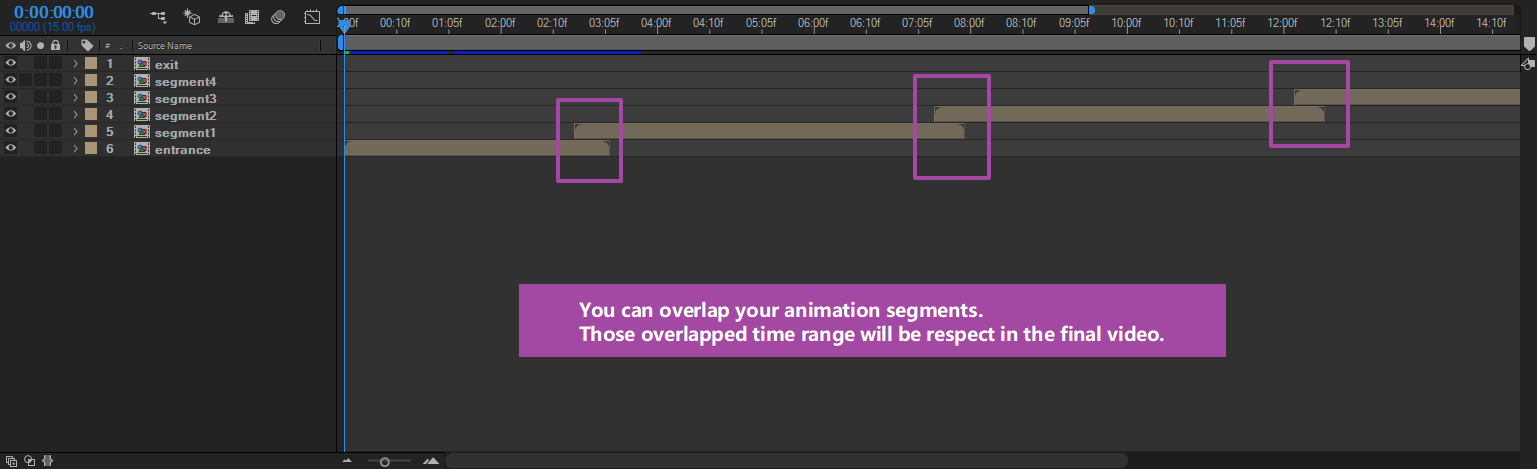
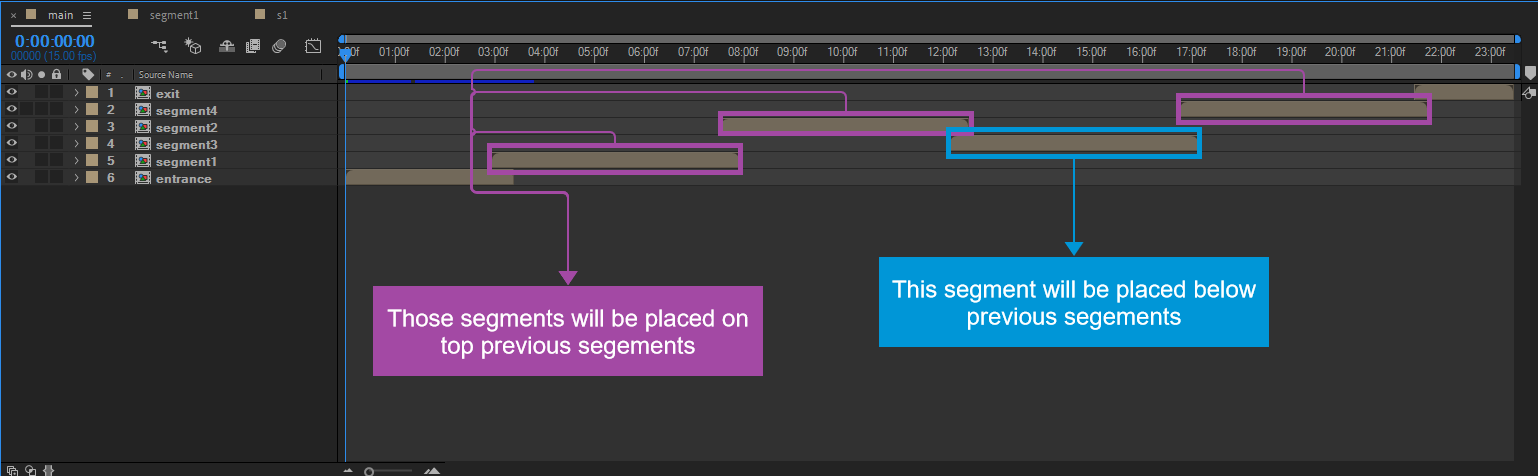
Also, you can decide an animation segment should be placed on top or below the previous animation segment. In order to do so, you just need to put your animation segments in the order you want in the main composition.
Here\'s a screenshot to show you how it can be done.
OK, that\'s it, you can export your template now.
Exporting a dynamic template is even simpler than exporting a standard template.
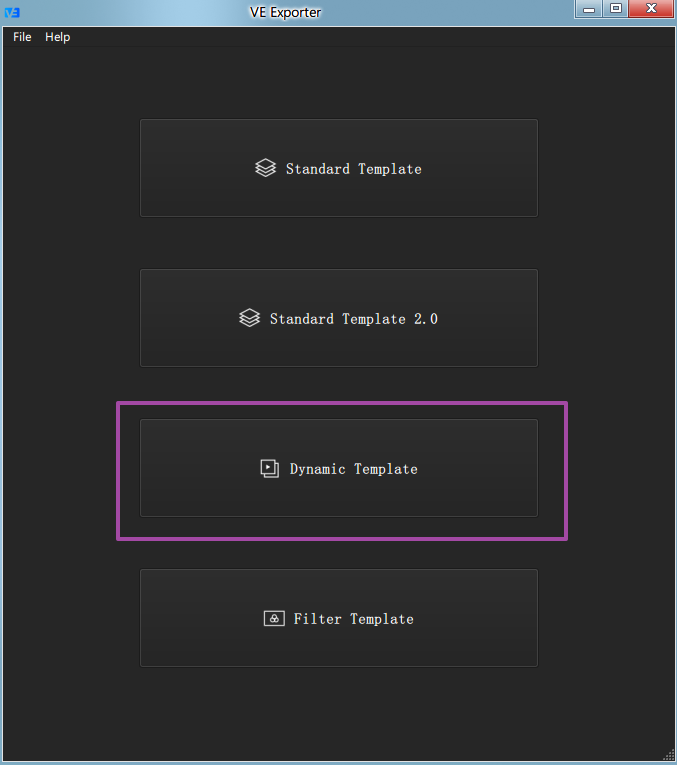
Open VE Exporter and enter dynamic template exporting mode
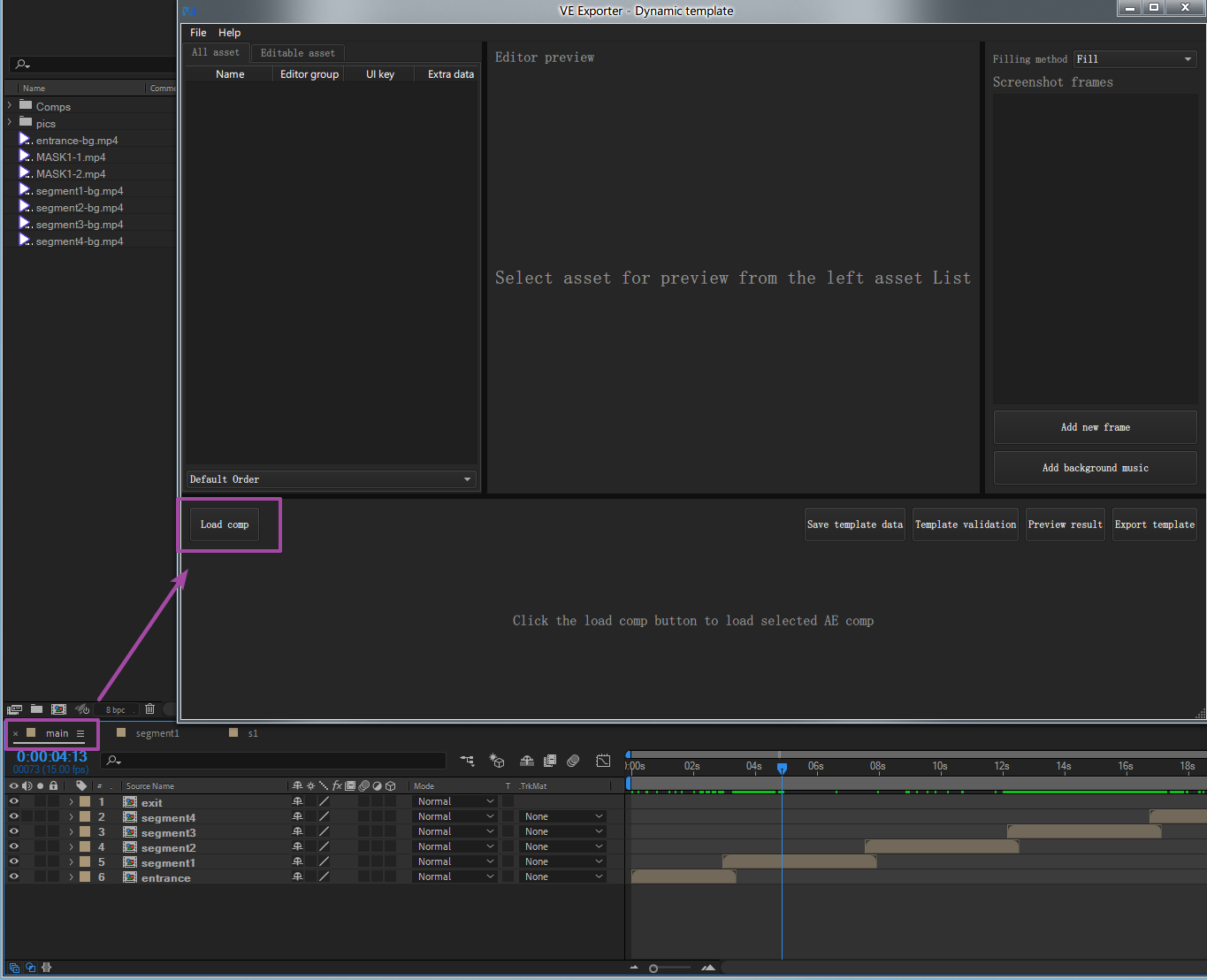
Load main composition
To load main composition, first, you need to select and active your main composition in the timeline, and then click the "Load comp" button on VE Exporter
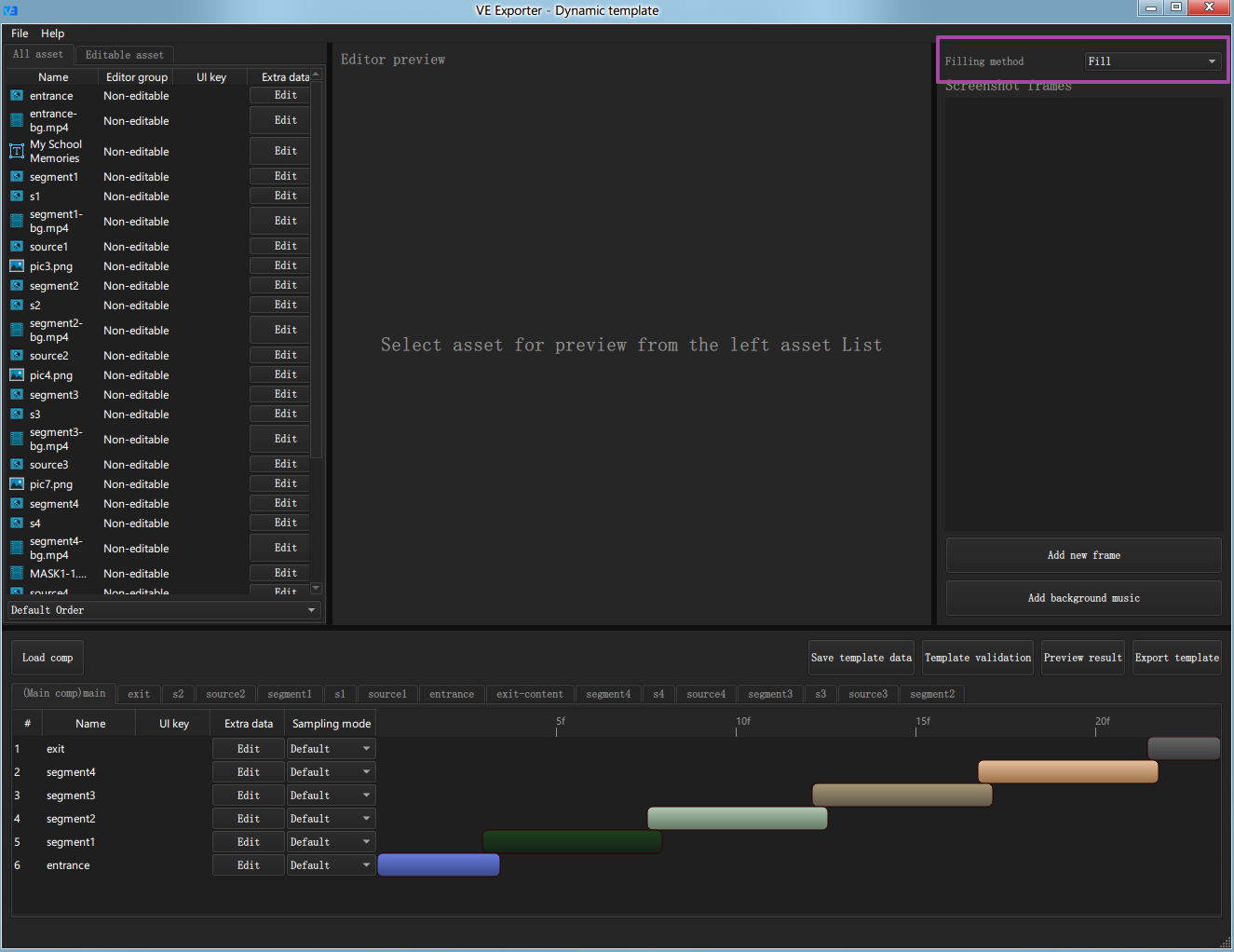
Select asset fill method
We introduced the 7 options source comp can use to adjust user assets, before exporting your dynamic template, you need to make sure you chose the right one.
Preview template
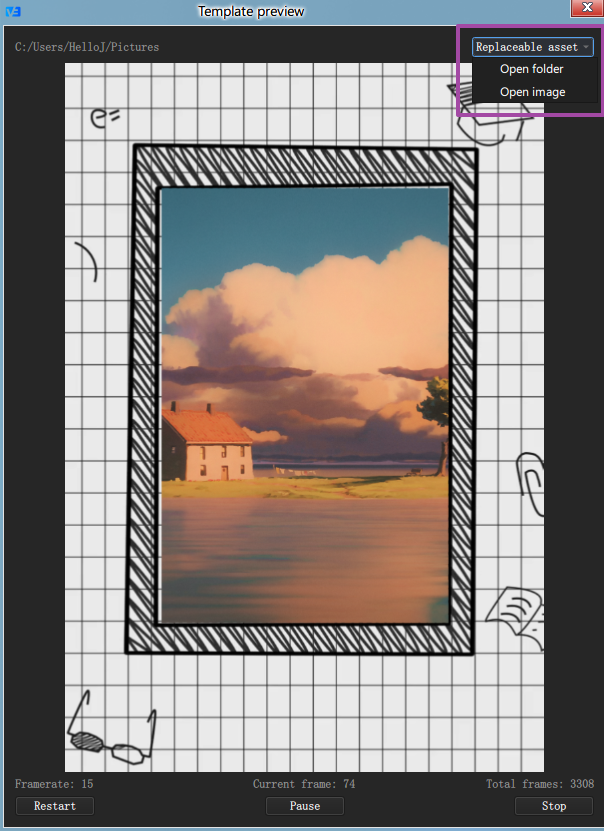
Click the "Preview" result button, you can preview your dynamic template rendering result in real time.
For dynamic template, you need to select some image files as user assets in order to test the final result of your dynamic template.
To do so, you can click on the "Replaceable asset" option button at the top of preview dialog. You have 2 options to choose from, first, you can select and open a folder, VE Exporter will scan that folder for jpg and png files and use them as user assets, second, you can choose multiply image files manually and use them as user assets.
Either way, after selecting your asset images, VE Exporter will use them as user assets and dynamically construct the result video for you to preview it in real time.
Export template package
Click the "Export template" button and select a folder you want to store your template files, you template data should be saved to there automatically.
You can open your template folder to check out content of VE template.
A typical VE template contains 4 parts,
| Item | Remarks |
|---|---|
| assets folder | contains all the asset files used in the template |
| datas folder | contains all the animation data files |
| ui folder | contains all editor accessory images |
| config.json | contains the structure data of your template |

Now you can distribute your template in your apps.
 账号信息
账号信息 我的产品
我的产品 退出登录
退出登录